
FLUX · FlowFi's AI
The market talks fast.FLUX reads it for you.
Ask in plain words. FLUX reads every token FlowFi tracks through Money, Attention and Safety, and answers in plain words, out loud.
01Live now
FLUX · Market insight
AlertsFLUX is reading the market…
Check any token
Paste a Solana contract address. Safety facts first, then the FLUX read.
Sign in to check a tokenTheme heat
Share of LIVE's last-hour volume. Tap to filter.Token reads
Information only. Not financial advice.
02What FLUX does
What he reads, what he knows, how he talks.
Analysis
Ask about a token and FLUX answers with FlowFi's own facts first, then a read in plain words. Three signals behind every read.
- MoneyLiquidity and market cap, buys vs sells in the last hour, how much the top 10 holders own, and smart wallets buying.
- AttentionWho is posting about it on X, FlowFi's signals, and its multiple from FlowFi's first detection.
- SafetyMint and freeze authority, token rules and a Trust score out of 100. The Firewall comes first: a token that fails it never reaches LIVE, and FLUX tells you whether a token passed FlowFi's checks.
How to ask: tap FLUX on any chart and press Analyze, or paste a contract address in Check any token. Or ask him above: “What is the Firewall?”
Data
FLUX reads FlowFi's own data. If a number can't be read, he leaves it out. He never guesses.
- LIVEEvery token on Early Radar and every Validated token, refreshed every minute.
- MarketPrice, liquidity, volume and buys vs sells for each pool.
- On-chainMint and freeze authority, holders, the dev wallet, and wallets funded by the same source or brand new.
- WalletsThe smart wallets FlowFi follows, and which of them bought.
- XPosts about a token and how many different accounts wrote them.
- ResultsEvery catch since FlowFi's first detection, wins and misses, to show how similar tokens did.
- YouWhen you're signed in: your own position in that token on FlowFi.
Voice & brief
FLUX talks back. Speak to him, hear his reads, and get a short brief each morning on what you hold.
- TalkTap Talk to FLUX and say it: “GM FLUX, how's the market?” He answers in text and out loud, in the language you speak to him in.
- ListenAny read FLUX writes, he can read to you: 40 new reads a day when you're signed in.
- TelegramAsk FLUX on Telegram and he answers in your language, 30 answers a day, with his reads as voice notes.
- BriefPro: each morning at 8:30 ET, one email with FlowFi's facts and Decision Lens for every token you hold from FlowFi.
03Free and Pro
What you get.
| Feature | Free | Pro |
|---|---|---|
| Market read, theme heat and token reads | ||
| FLUX AI reads (Analyze a token, ask in your language) | 5 a day | 50 a day (×2 Pro+, ×4 Pro Elite) |
| Decision Lens: signals aligned and what to watch | ||
| Safety checks | Mint, freeze, token rules | + top 10, dev, linked and fresh wallets |
| Check any token | 3 a day | 50 a day (×2 Pro+, ×4 Pro Elite) |
| Hear FLUX's reads out loud | 40 a day | 40 a day |
| Ask FLUX in Telegram | 30 a day | 30 a day |
| Daily FLUX brief by email on what you hold |
FLUX AI reads, his voice and Check any token need a free account. Information only, not financial advice. Always DYOR.
Connector
Add FLUX to your AI assistant
https://flowfiengine.app/api/mcpClaude
- 1Open Settings → Plugins (left menu) → Add custom connector.
- 2Name: FLUX. URL: paste the link above.
- 3“Couldn't check the server”? Click Continue anyway (that's normal).
- 4Authentication: pick No sign-in. Leave Request headers empty. Save.
- 5Open a new chat, turn FLUX on in the + (tools) menu and ask: “FLUX: what's moving?”
ChatGPT
- 1Open Settings, then Apps & Connectors, then Advanced, and turn on Developer mode.
- 2Tap Create, name it FLUX, paste the URL above, choose No authentication and save.
- 3In a chat, pick FLUX from the + menu and ask: “Check this project: <address>”
Common questions
- Web or app?
- Both. Add FLUX once in Settings and it works everywhere you're signed in with the same account: web, desktop app and phone.
- Free link or my key link?
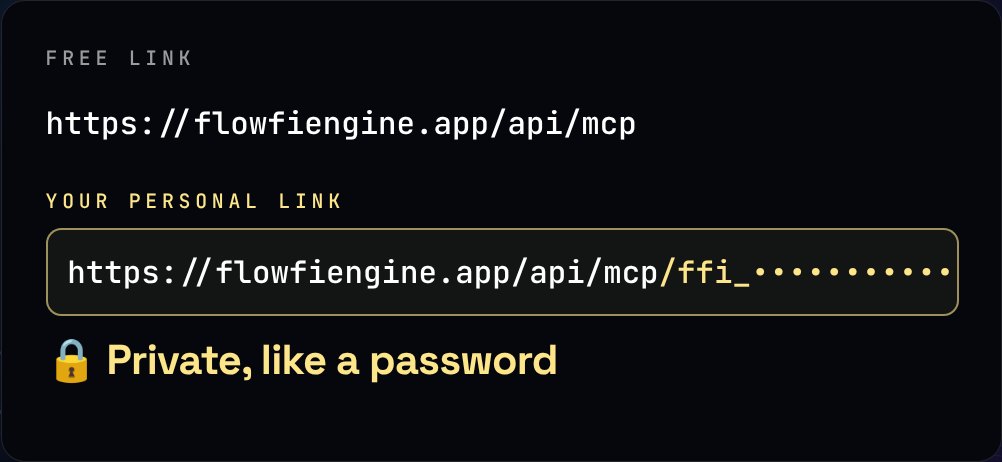
- The link above is free. With a FlowFi API key, use the same link with your key at the end (…/api/mcp/ffi_…): get it with Get my API now → API keys. Keep that link private, like a password.
- I see a yellow warning?
- It means anyone with the link can use the connector. That's fine for the free link, and it's why your key link stays private.
- The cards don't show?
- Settings → Plugins → FLUX → refresh it, then start a new chat.
Build with the API
Use the same intelligence in your own app: free plan, 60-second quickstart.
Free: 10 answers a day (15 min delayed). Pay as you go: $0.01 an answer, $0.05 a project check (USDC). FlowFi API key on a paid plan: unlimited, real-time.
Have a FlowFi API key? Add it to the end of the URL — keep that URL private. Information only, not financial advice. Always DYOR.
Step-by-step guide
1/8Web or app? Both.
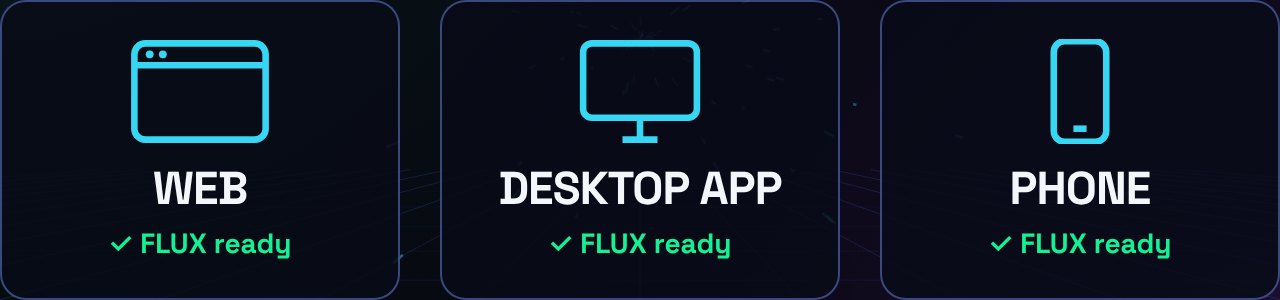
You add FLUX once, in Settings. It then works everywhere you're signed in with the same account: web, desktop app and phone.
What you should see: After step 6, FLUX is in your chats on every device.
2/8Copy the link
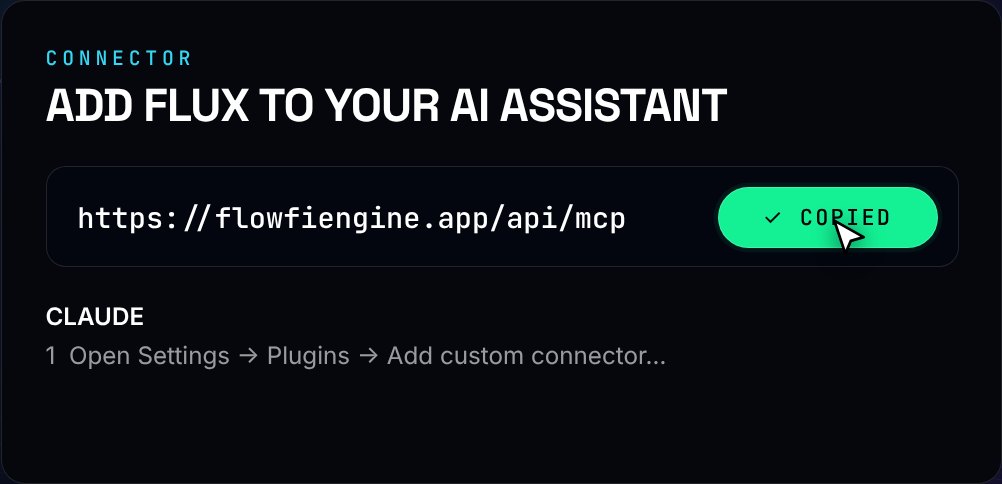
Tap Copy URL in the box above. That's the free link: https://flowfiengine.app/api/mcp
What you should see: The button turns to Copied.
If not: Have a FlowFi API key? Use the same link with your key at the end (…/api/mcp/ffi_…). Get it with Get my API now → API keys. Keep that link private, like a password.
3/8Settings → Plugins
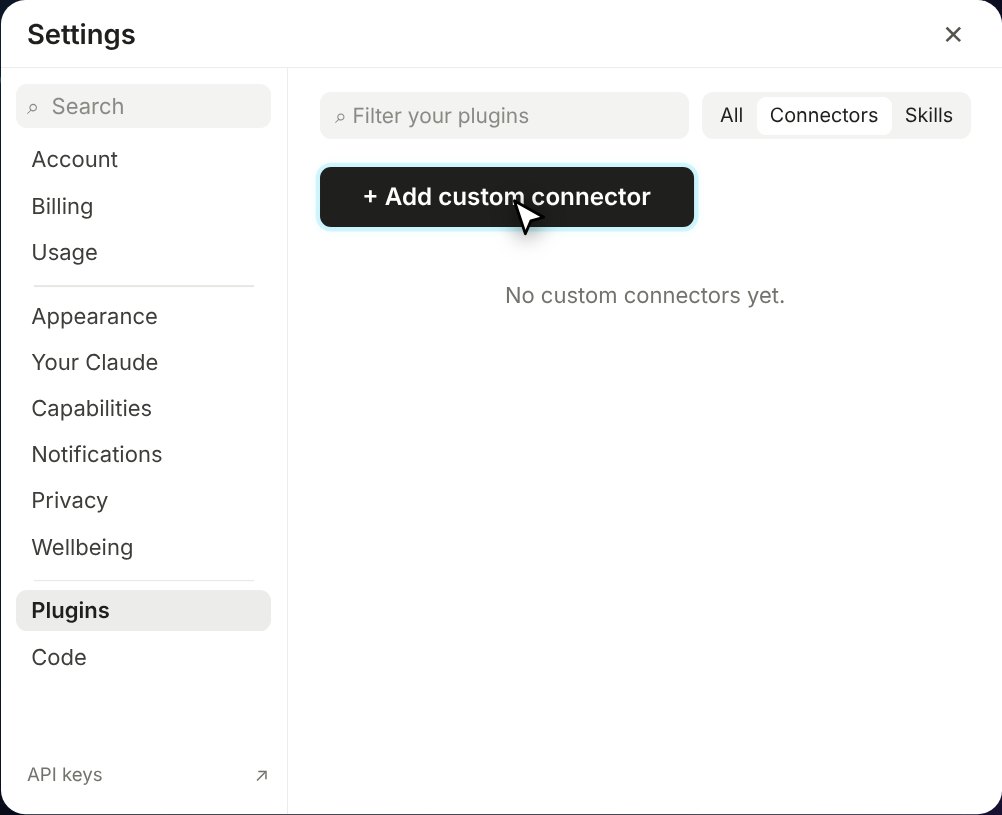
In Claude, open Settings. Click Plugins in the left menu, then Add custom connector.
What you should see: A window titled Add custom connector.
If not: Don't see Plugins? It's in the left menu, under Wellbeing and above Code.
4/8Name it FLUX, paste the link
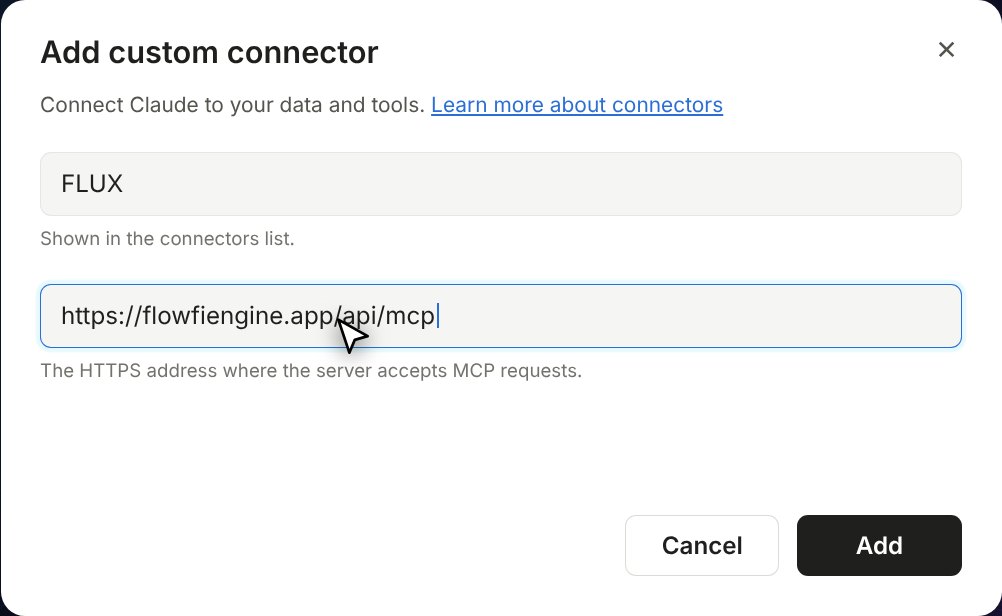
Name: FLUX. URL: paste the link you copied in step 2.
What you should see: The URL field shows https://flowfiengine.app/api/mcp (or your key link), with no spaces.
If not: Something else in the field? Go back to step 2, tap Copy URL again and paste.
5/8Couldn't check the server? Continue anyway
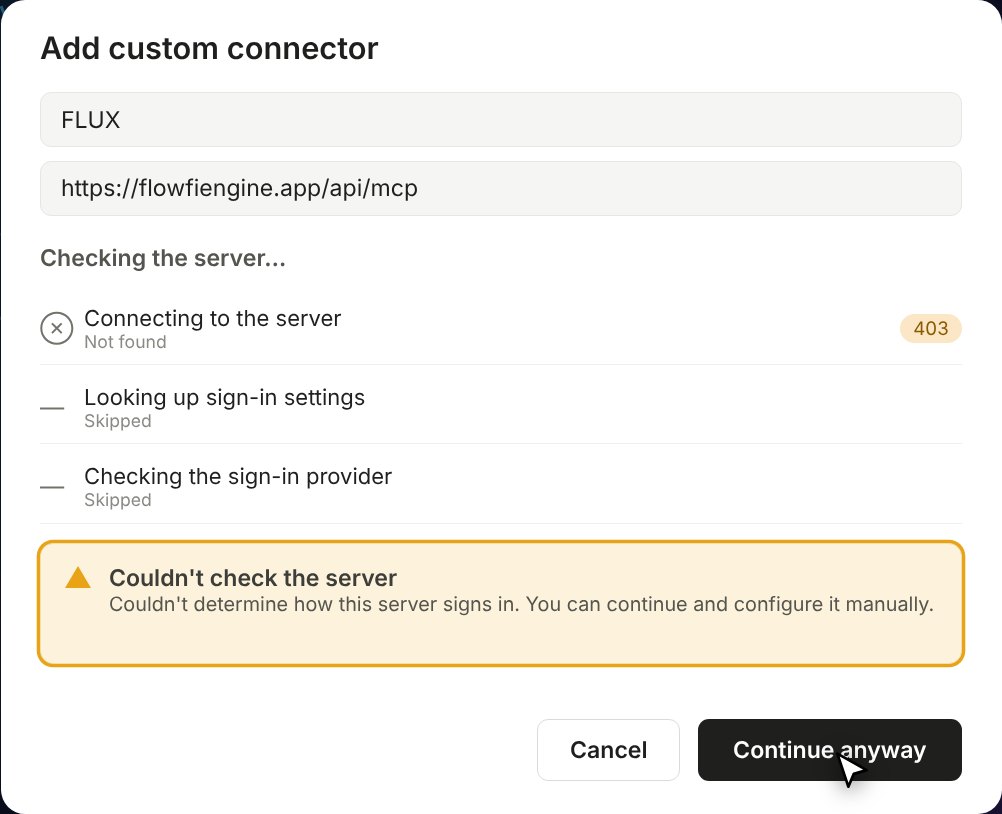
If Claude says “Couldn't check the server”, click Continue anyway.
What you should see: A 403 next to Connecting to the server. That's normal for FLUX: it still works.
If not: Typo in the link? Fix it first: it must be exactly the link from step 2.
6/8No sign-in, then Save
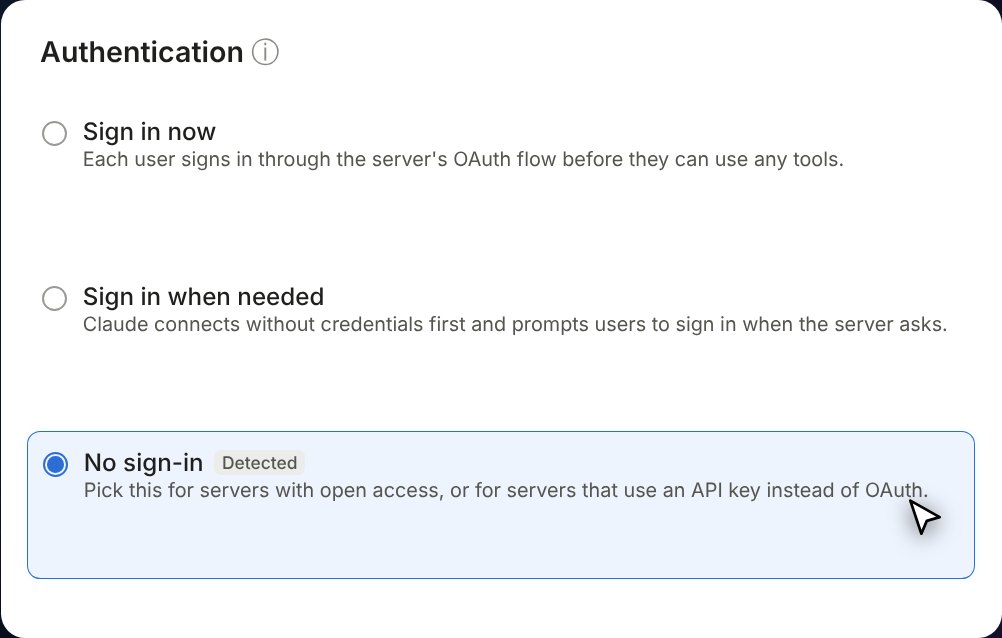
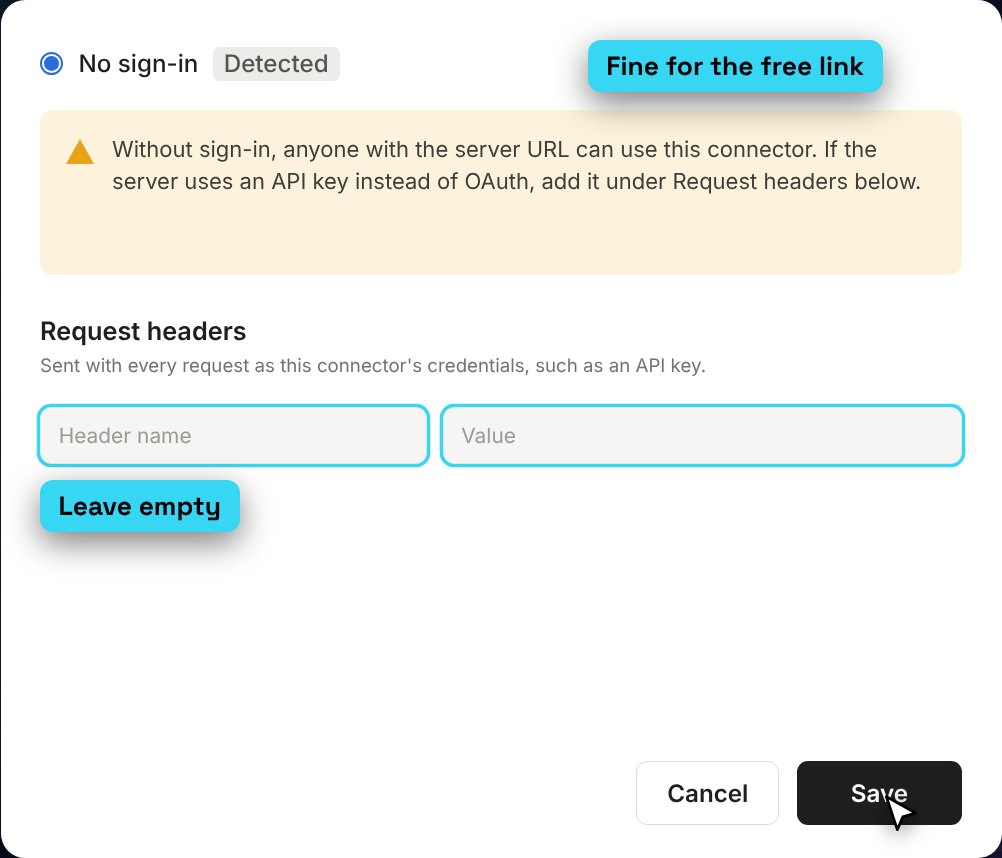
Under Authentication, pick No sign-in (it's usually already marked Detected). Leave Request headers empty. Click Save.
What you should see: A yellow warning: anyone with the server URL can use this connector.
If not: That's fine for the free link. It's why your key link stays private.
7/8New chat, turn FLUX on, ask
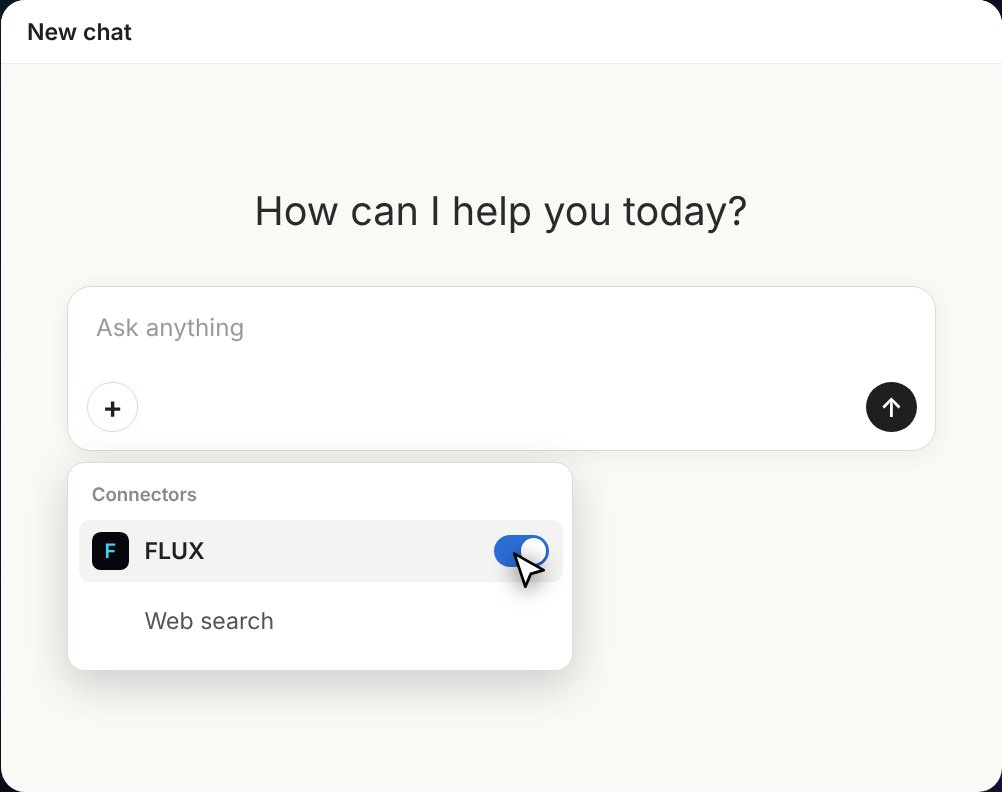
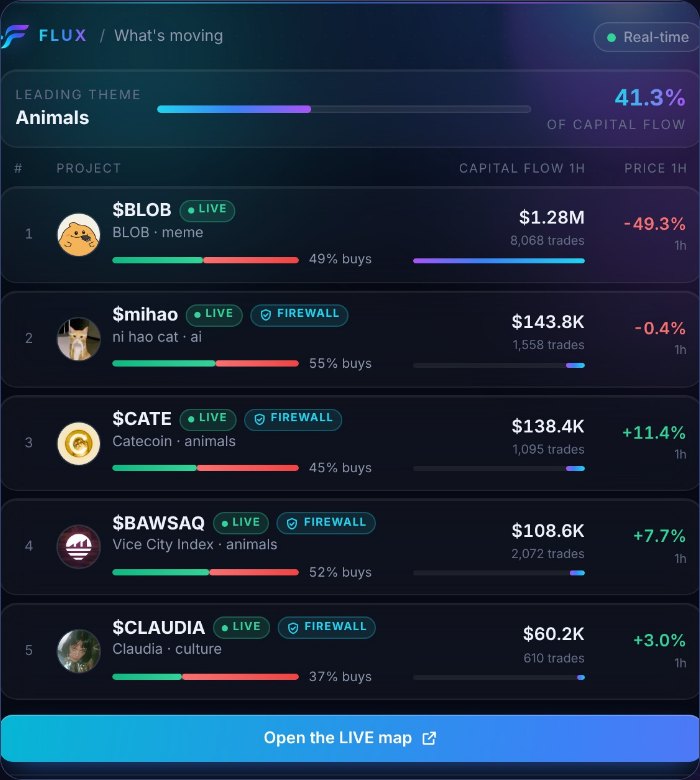
Open a NEW chat. In the + (tools) menu, turn FLUX on. Ask “FLUX: what's moving?” or “Check this project: <address>”.
What you should see: “Used FLUX” above the answer, then a visual FLUX card with the proof.
If not: FLUX not in the menu? Make sure you clicked Save in step 6, then open a new chat.
8/8Cards not showing? Refresh
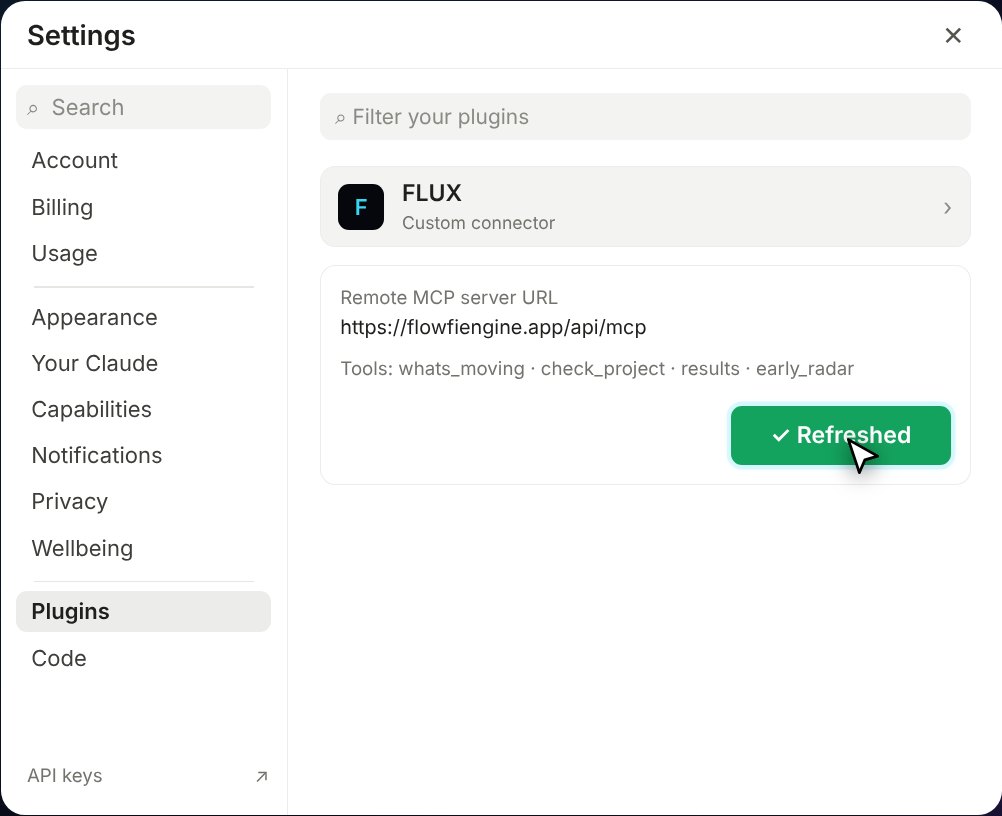
Go to Settings → Plugins → FLUX and refresh it. Then start a new chat.
What you should see: Your next FLUX answer comes back as a visual card.
If not: Added FLUX before the cards existed? This refresh is all it takes.