
FLUX
Connector
https://flowfiengine.app/api/mcpClaude
ChatGPT
Build with the API
Use the same intelligence in your own app: free plan, 60-second quickstart.
Free: 10 answers a day (15 min delayed). Pay as you go: $0.01 an answer, $0.05 a project check (USDC). FlowFi API key on a paid plan: unlimited, real-time.
Have a FlowFi API key? Add it to the end of the URL — keep that URL private. Information only, not financial advice. Always DYOR.
1/8Web or app? Both.

You add FLUX once, in Settings. It then works everywhere you're signed in with the same account: web, desktop app and phone.
What you should see: After step 6, FLUX is in your chats on every device.
2/8Copy the link
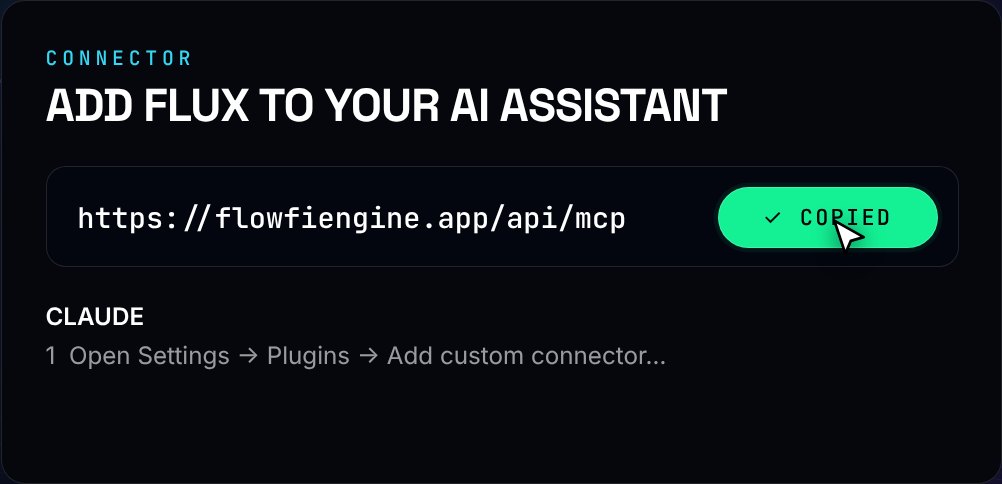
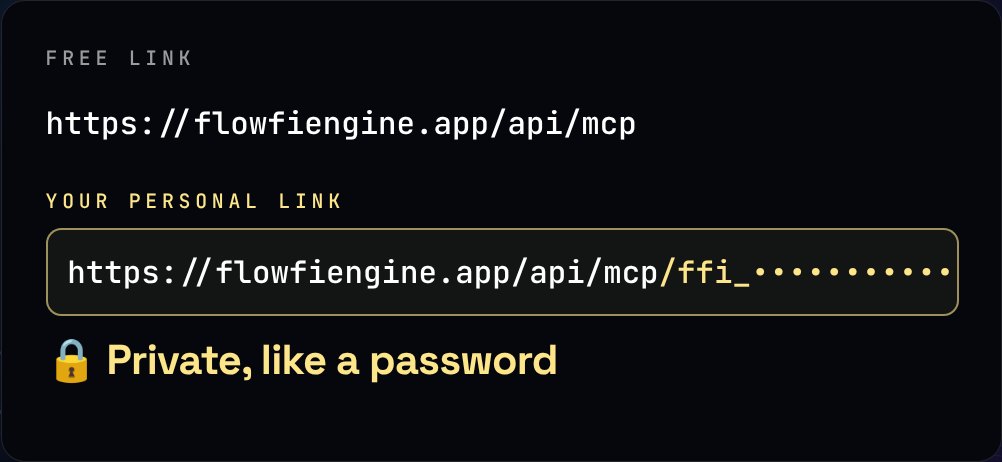
Tap Copy URL in the box above. That's the free link: https://flowfiengine.app/api/mcp
What you should see: The button turns to Copied.
If not: Have a FlowFi API key? Use the same link with your key at the end (…/api/mcp/ffi_…). Get it with Get my API now → API keys. Keep that link private, like a password.
3/8Settings → Plugins
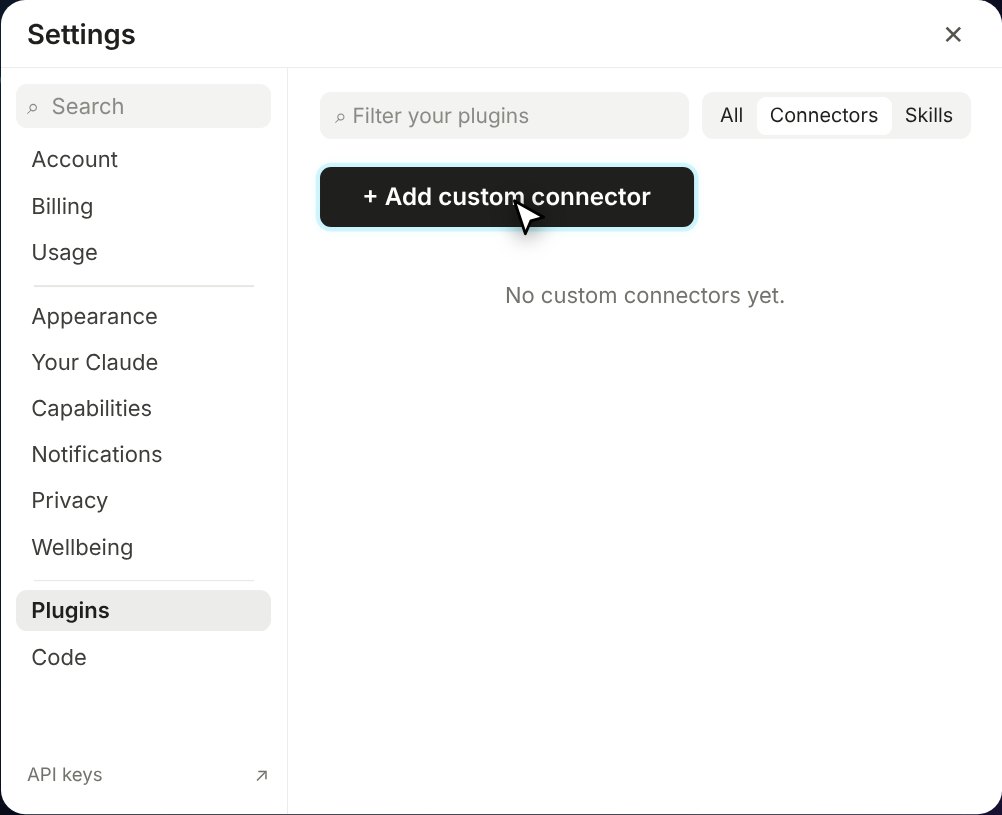
In Claude, open Settings. Click Plugins in the left menu, then Add custom connector.
What you should see: A window titled Add custom connector.
If not: Don't see Plugins? It's in the left menu, under Wellbeing and above Code.
4/8Name it FLUX, paste the link
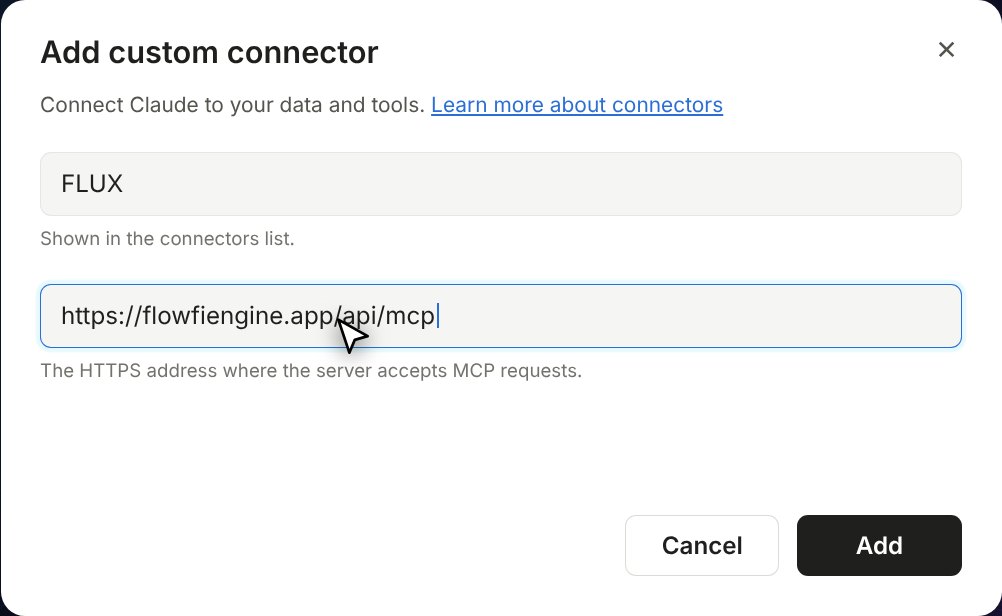
Name: FLUX. URL: paste the link you copied in step 2.
What you should see: The URL field shows https://flowfiengine.app/api/mcp (or your key link), with no spaces.
If not: Something else in the field? Go back to step 2, tap Copy URL again and paste.
5/8Couldn't check the server? Continue anyway
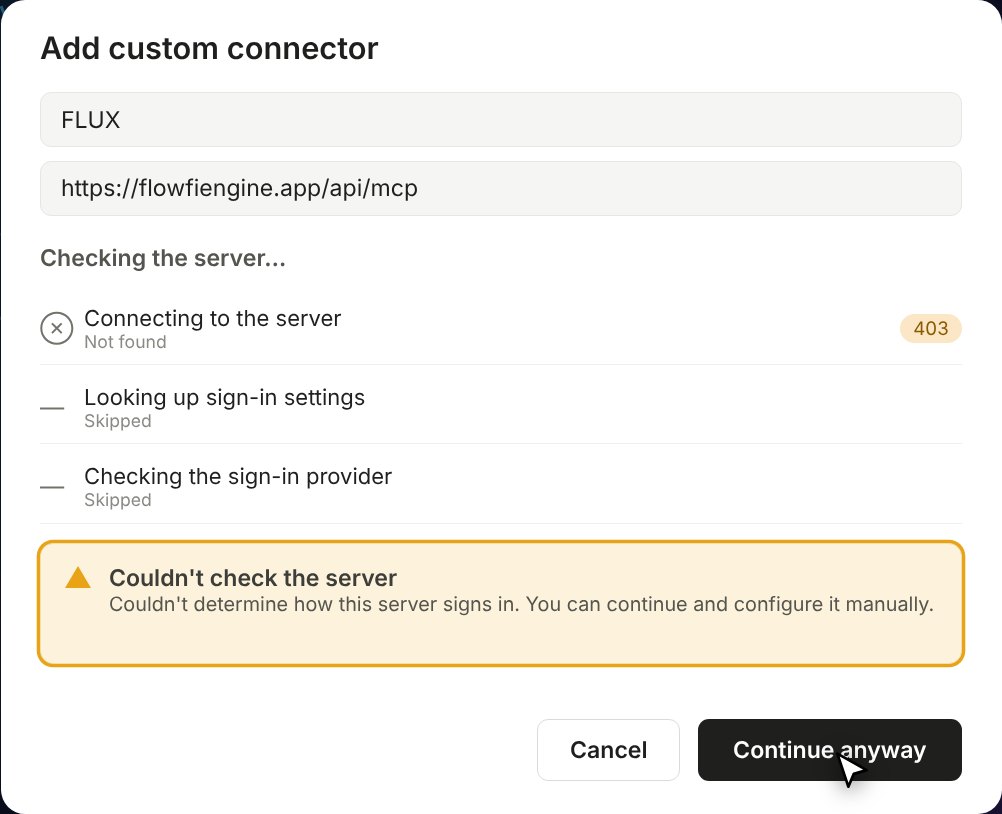
If Claude says “Couldn't check the server”, click Continue anyway.
What you should see: A 403 next to Connecting to the server. That's normal for FLUX: it still works.
If not: Typo in the link? Fix it first: it must be exactly the link from step 2.
6/8No sign-in, then Save
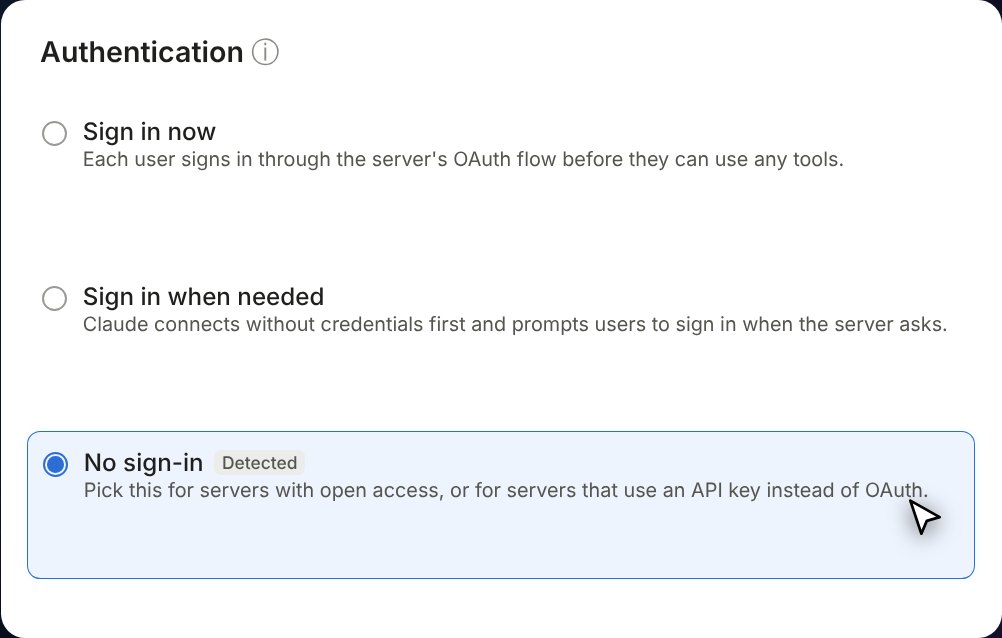
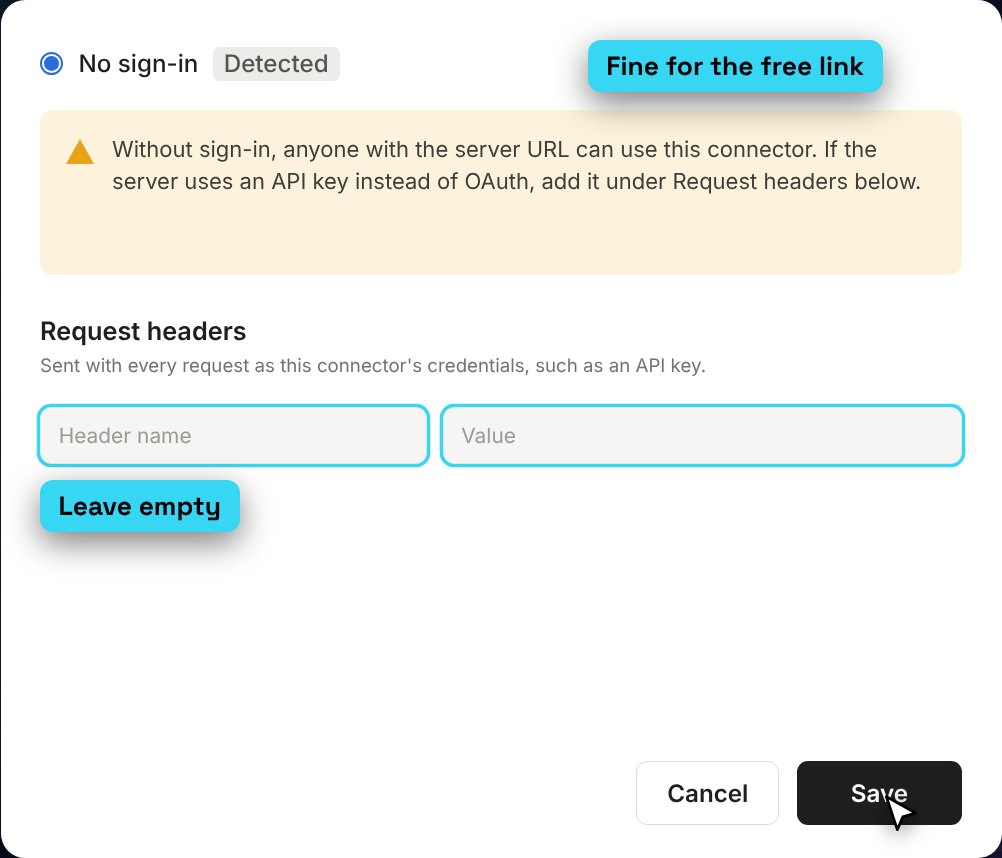
Under Authentication, pick No sign-in (it's usually already marked Detected). Leave Request headers empty. Click Save.
What you should see: A yellow warning: anyone with the server URL can use this connector.
If not: That's fine for the free link. It's why your key link stays private.
7/8New chat, turn FLUX on, ask
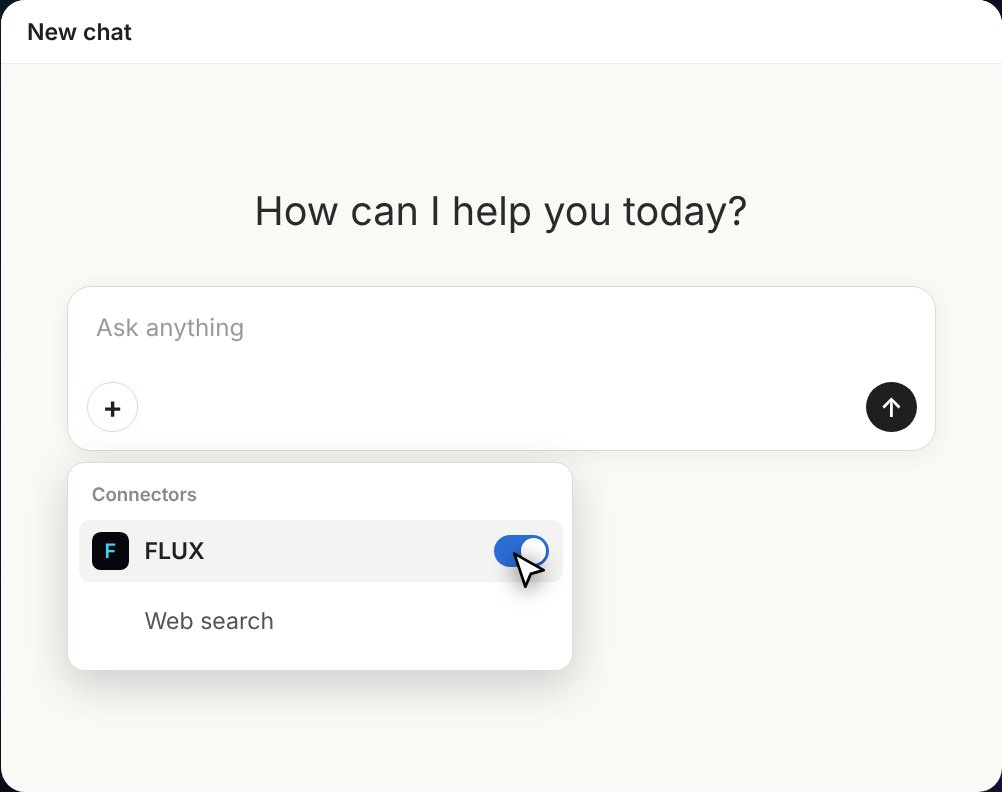
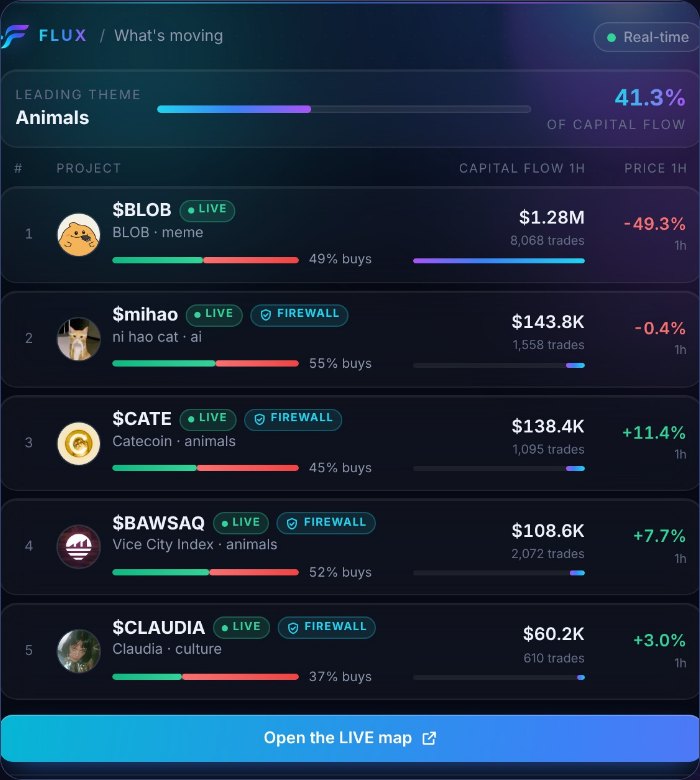
Open a NEW chat. In the + (tools) menu, turn FLUX on. Ask “FLUX: what's moving?” or “Check this project: <address>”.
What you should see: “Used FLUX” above the answer, then a visual FLUX card with the proof.
If not: FLUX not in the menu? Make sure you clicked Save in step 6, then open a new chat.
8/8Cards not showing? Refresh
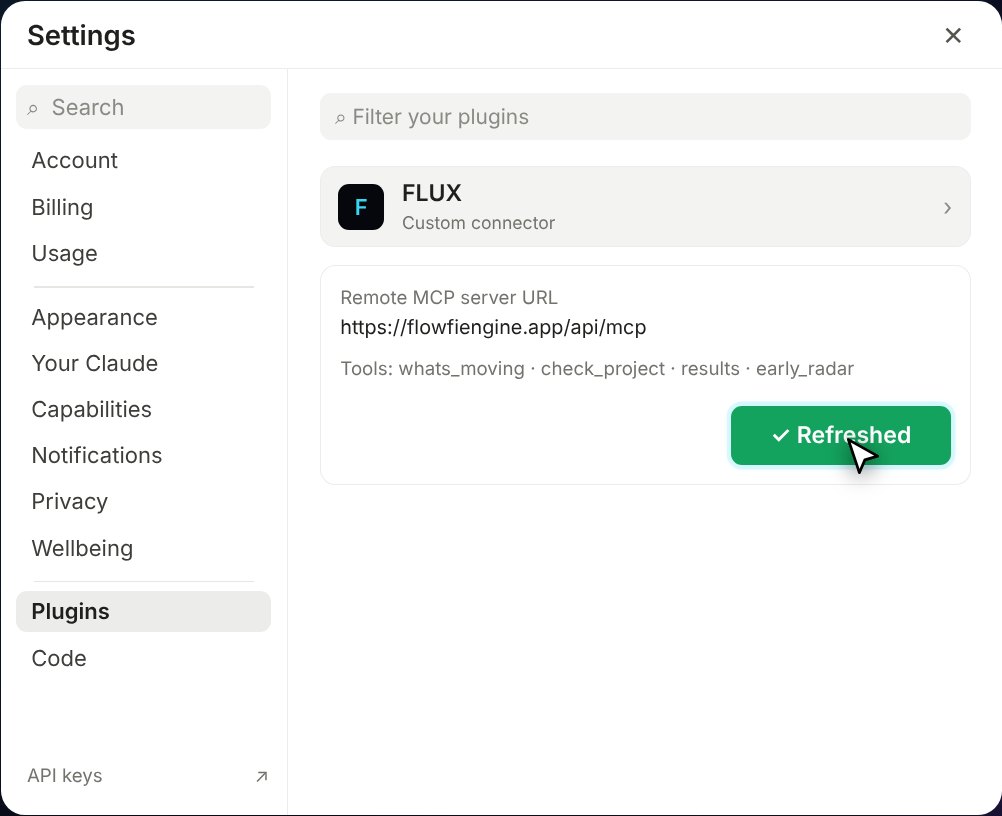
Go to Settings → Plugins → FLUX and refresh it. Then start a new chat.
What you should see: Your next FLUX answer comes back as a visual card.
If not: Added FLUX before the cards existed? This refresh is all it takes.
$FLOWFI CA
5pQPh2EBz3tSUcqig9jGY73u4hNrhiiiLtYQSHaqFLow